How to Make a Resume on Your Phone (Android & iPhone, 2026)
By Jyoti Sinha, Talent Acquisition Specialist at Leinex Consulting · September 22, 2026 · 8 min read
Most people in India apply for jobs from a phone, not a laptop. Job portals, WhatsApp forwards from a friend who works there, a LinkedIn message from a recruiter — the application starts on the phone, so the resume has to be made there too. This guide shows how to make a resume on a phone in about 20 minutes, in a format that both a human recruiter and an ATS can read, without installing an app or paying for a template.
It works on any Android phone or iPhone, in the browser you already have. If you have an old resume as a PDF or Word file, you can import it instead of typing from scratch.
What you need before you start
- Your phone with Chrome or Safari — no app to install
- Your details in one place: dates of each job or course, the name of each employer or college, 2–3 things you did in each role
- The job posting you are applying for, copied or saved — the keywords in it decide what goes on the resume
- 10–20 minutes. Do not try to finish it in the queue for the bus
Step 1: Choose a template that survives a phone screen and an ATS
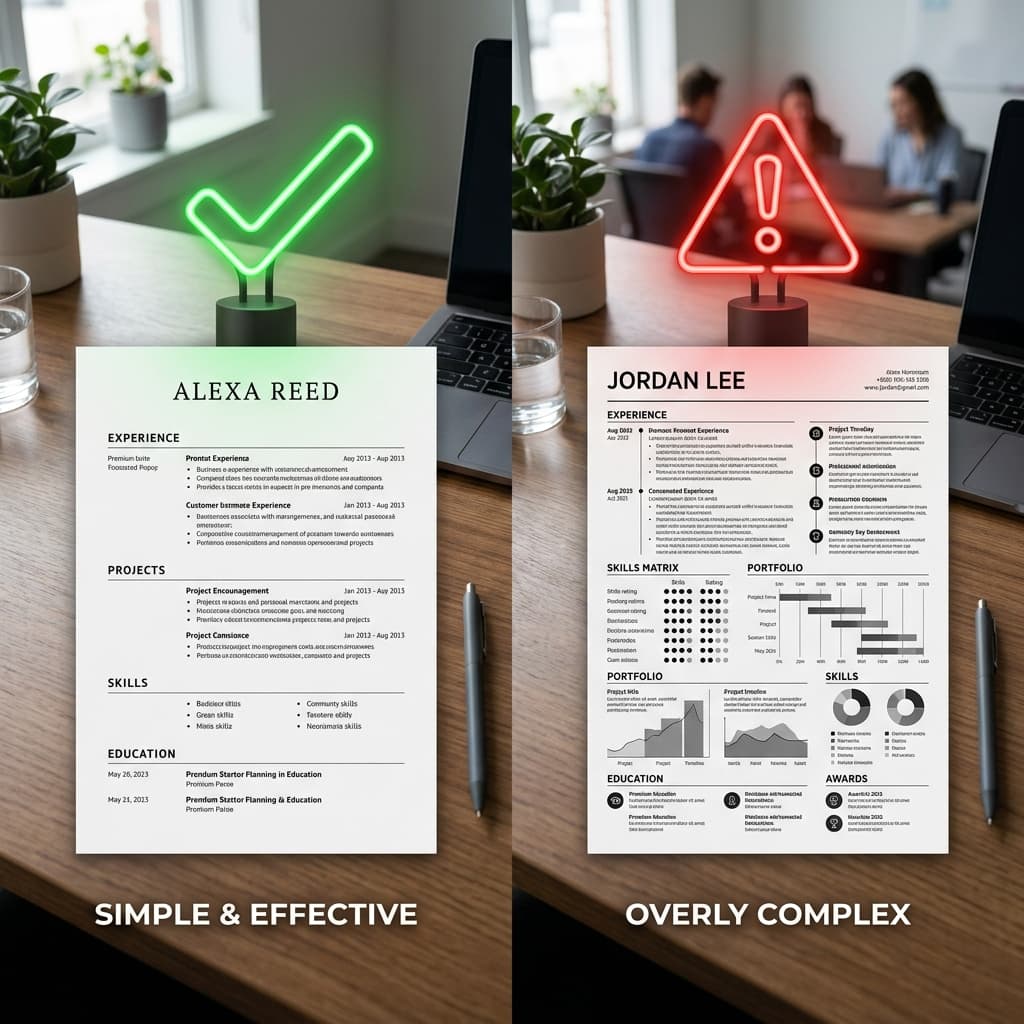
The template matters more on a phone than on a laptop, because you cannot see the whole page at once and layout mistakes hide from you. Pick a single-column layout with a clear font, no photo, no two-column sidebar, no tables. That is also exactly what applicant tracking systems parse best — the software most companies use reads the resume top to bottom, and a sidebar or a table scrambles the order.
Open the free resume builder on your phone and choose one of the ATS-safe templates. If you are a fresher, start from the fresher resume format so the section order — education before experience — is already right.
Step 2: Import your old resume, or fill the sections in order
If you already have a resume as a PDF or DOCX — on Google Drive, in WhatsApp, in your email — upload it and the builder splits it into editable sections. Check every section after import: phone parsers occasionally merge two jobs into one, and it is easier to fix now than after the download.
Starting from nothing? Fill the sections in this order, one at a time, and save after each:
- Contact details — name, phone with country code, a professional email, city. Skip the full address, date of birth and photo
- Headline or summary — two lines: the role you want and the two or three strengths that prove you can do it
- Experience or education — most recent first; use the job-title, company, dates, bullets pattern
- Skills — the tools and abilities the posting asks for, written the way the posting writes them
- Projects, certifications, languages — only if they add something the role needs
On a phone, write the bullets in the builder and not in a notes app first. Copying from Notes brings in stray line breaks and smart quotes that look fine on screen and break in a parser.
Step 3: Write bullets that fit a phone screen
The recruiter reading your resume is probably on a phone too. Keep each bullet to one or two lines: an action verb, what you did, and a number if you have one. "Handled customer calls" becomes "Resolved 40+ customer calls a day with a 92% first-call resolution rate". The resume action verbs list has 175 verbs sorted by the kind of work.
Avoid the auto-correct traps: the phone will capitalise words after a full stop inside a bullet, turn "eg" into "e.g.", and swap straight quotes for curly ones. Read each bullet once after typing it.
Step 4: Add the keywords from the job posting
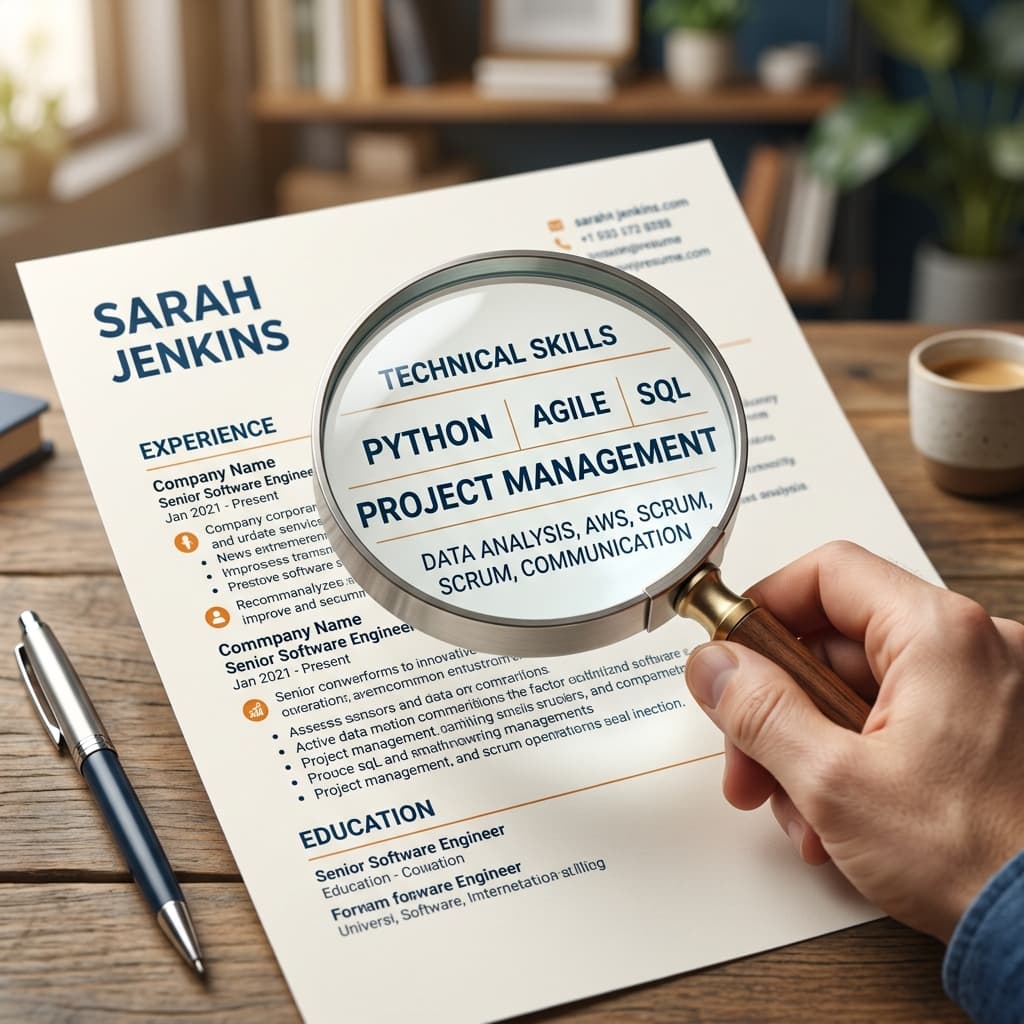
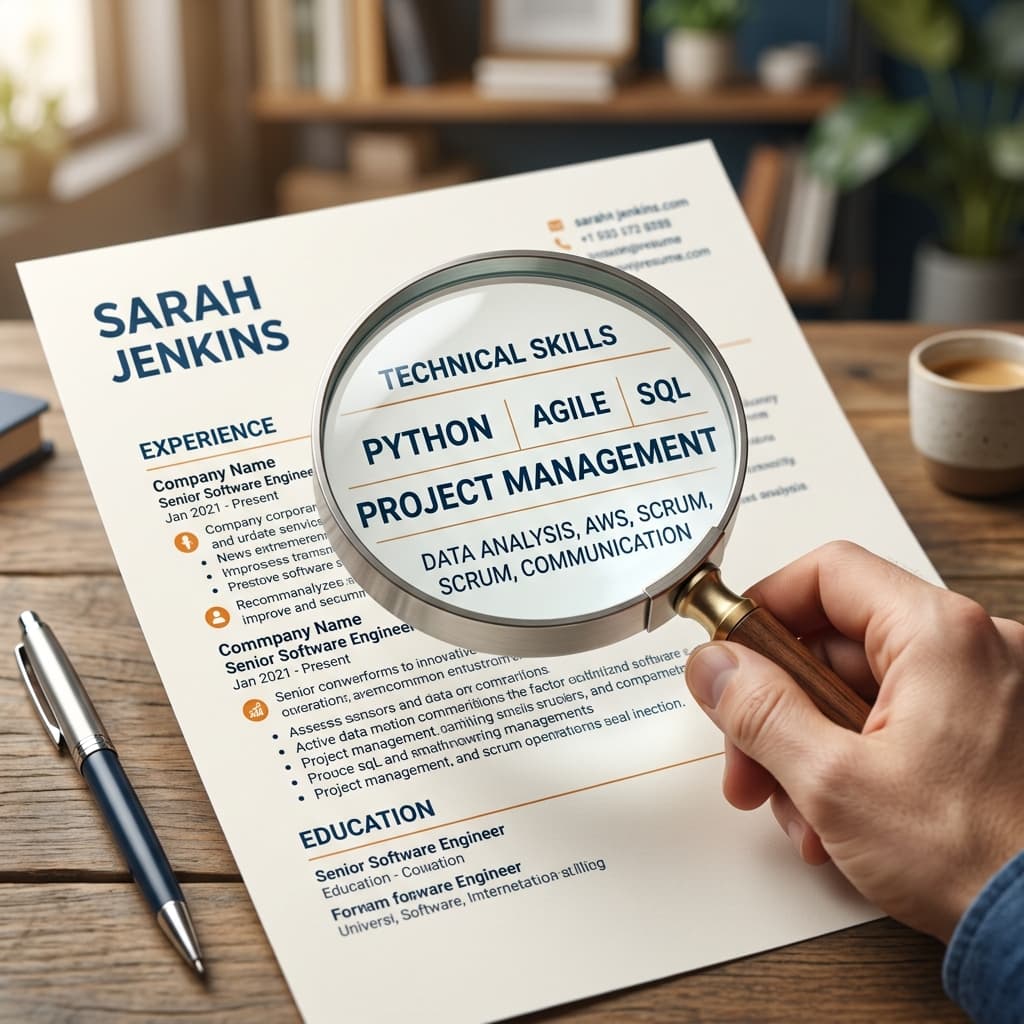
This is the step that decides whether the resume is seen at all. Open the posting in another tab, read the requirements section, and make sure the exact terms appear in your skills and experience — "Advanced Excel", not "spreadsheets"; "Java", not "programming". The resume keywords guide explains how to find them fast.
Faster on a phone: paste the posting into the free ATS resume checker together with your draft. It lists the keywords the posting uses that your resume does not, so you add exactly those and stop guessing.
Step 5: Check the preview at full width before you download
A phone preview zooms and reflows; the PDF does not. Before you download, open the preview, pinch out to see the full A4 page, and check three things: the resume is one page (two at most, if you have 8+ years), no section heading is stranded at the bottom of a page, and no bullet runs past three lines. Fix long bullets by cutting words, not by shrinking the font below 10.5 pt.
Step 6: Download as PDF and name the file properly
Download the PDF — not a screenshot, not a JPG, not a Word file unless the posting asks for one. A screenshot of a resume is an image; an ATS cannot read a single word of it, and it is the most common phone-only mistake. Name the file Firstname-Lastname-Resume.pdf before you send it. "resume(3).pdf" is what a recruiter sees fifty times a day.
On Android the PDF lands in Downloads; on iPhone, tap the share icon and choose Save to Files so you can find it again. Then send it from the file — attaching from Files or Drive keeps the PDF intact, while some messaging apps compress images and can compress documents too.
Step 7: Run the PDF through an ATS check — from the phone
Upload the downloaded PDF and the job posting to the ATS resume checker. It reads the file the way an applicant tracking system does and gives a 0–100 score with the matched, missing and weak keywords. Anything under 70 usually means a missing keyword or a formatting element the parser skipped. Fix it in the builder, download again, re-check. Three checks a month are free, which is enough for one carefully tailored resume.
Phone-specific mistakes that cost interviews
- Sending a screenshot or photo of the resume instead of a PDF — unreadable by every ATS
- Using a Canva or image-based template — looks great, parses as one picture
- Two-column layouts chosen because they fit the phone screen — they do not fit the parser
- A WhatsApp-style email address, or the phone number without +91 for applications abroad
- Auto-correct rewriting company names and tool names ("Tally" to "Tally.", "SQL" to "Sql")
- Forgetting to update the headline after copying a friend's resume — recruiters notice the wrong role in line one
Do you need a resume app?
No. The resume-maker apps in the Play Store and App Store mostly produce the same image-based, two-column designs that fail parsing, and many charge for the PDF export after you have typed everything in. A browser-based builder gives you a real PDF, saves your work to your account so you can finish on a laptop later, and does not need storage on the phone. If you prefer an app icon, add the builder to your home screen from the browser menu — it behaves like one.
FAQ
Can I make a resume on my phone for free?
Yes. The ATS First resume builder works in the phone browser with no app and no card; the free plan includes ATS-safe templates and three formatted PDF downloads a month. Pro adds premium templates, DOCX export and unlimited downloads as a one-time pass — nothing renews.
How do I make a resume on an iPhone without Pages or Word?
Open the builder in Safari, fill the sections, and download the PDF; tap Share, then Save to Files. You never need Pages, Word or a desktop. To attach it to an email or a portal, choose the file from Files or iCloud Drive.
How do I make a resume on an Android phone?
Open the builder in Chrome, import an old resume from Drive or WhatsApp or start fresh, and download the PDF to the Downloads folder. Attach it from there on Naukri, LinkedIn, Indeed or email. Chrome's "Add to Home screen" turns the builder into an app icon.
Is a resume made on a phone ATS-friendly?
It is if the template is single-column and the download is a text-based PDF. The phone is not the problem; image-based templates and screenshots are. Run the PDF through a free ATS check to confirm the parser reads every section.
Can I make a resume in WhatsApp or Google Docs on a phone?
Google Docs works but the mobile editor makes alignment and spacing hard, and exporting to PDF loses formatting on some templates. WhatsApp cannot produce a document at all — it only forwards one. A resume builder is faster than either and produces a parser-safe PDF by default.
Twenty minutes on the phone you already have is enough. Build your resume on your phone →, then check it against the posting → before you hit apply.
Check your resume's ATS score — free
Upload your resume + paste any job description. Get your score in 60 seconds.
Analyze My Resume →